
[ WisBlock Case Generator ]
[ Overview |
Get the files |
What you need |
Render targets |
Print workflow |
Verify first |
Parameters |
Snap vs screw |
Assembly |
Materials ]
[ Overview ]
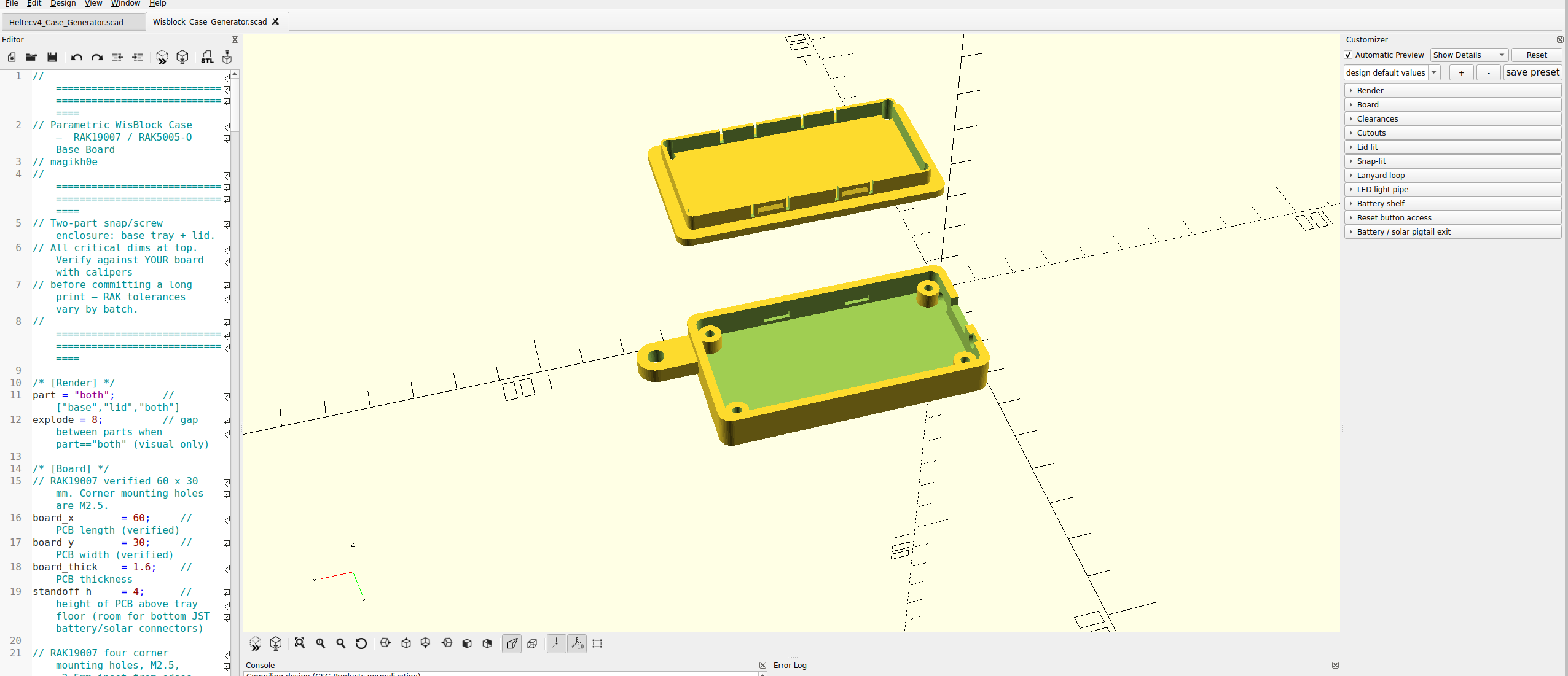
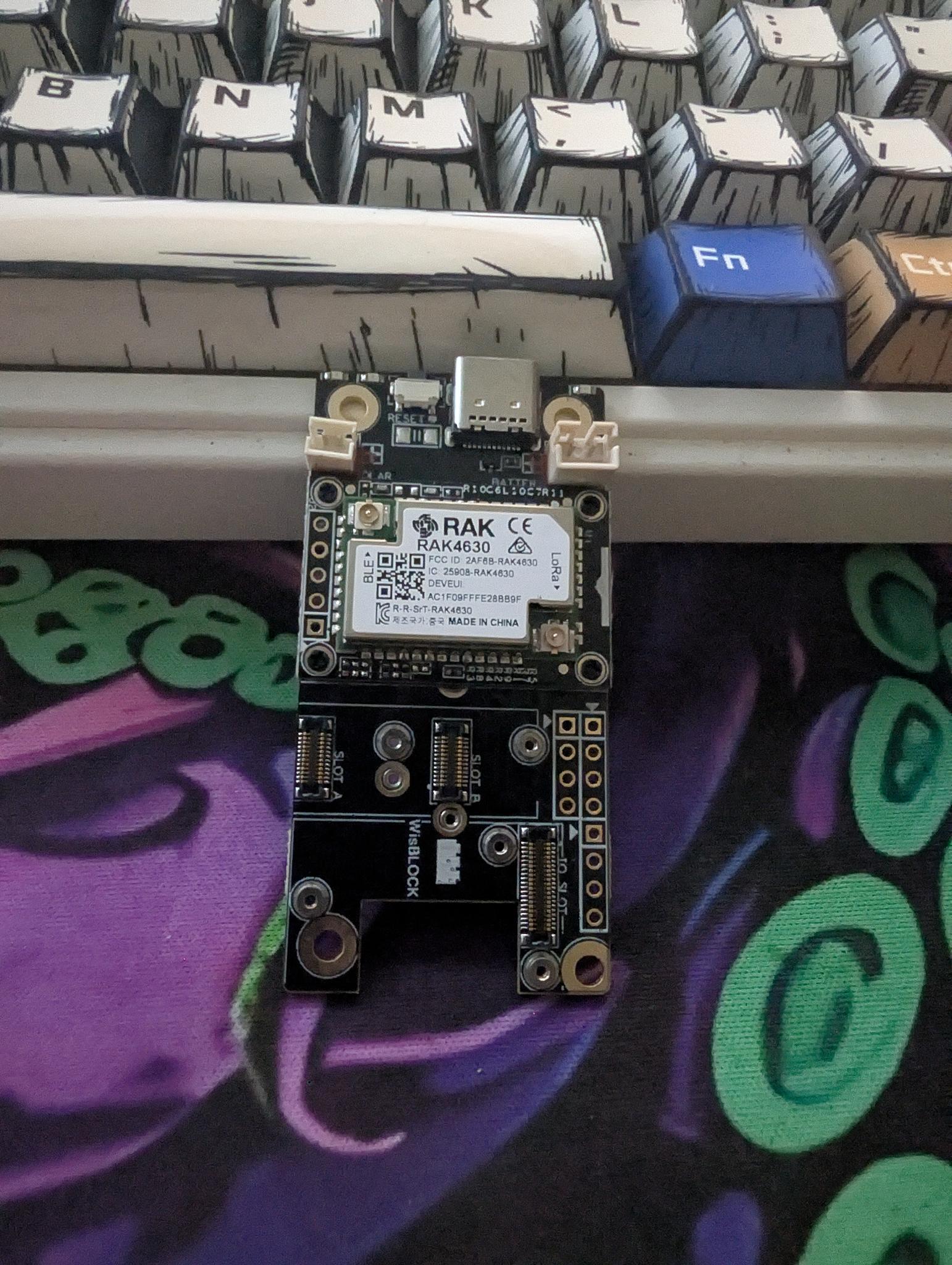
A parametric OpenSCAD enclosure for the RAK19007 WisBlock base board
+ RAK4631 core, the Meshtastic starter kit. One .scad file produces a
base tray and a choice of lids, every dimension tunable from variables at the
top. No CAD skills needed: change a few numbers, render, export an STL.

The defaults are built from the RAK19007 datasheet and verified for manifold
geometry. Tolerances drift by board batch and by printer, so test-fit before
you commit to a long print. There's a one-minute fit-checker trick below.
[ Get the files ]
  — Wisblock_Case_Generator.scad — the generator. Open it
    in OpenSCAD and tune it to your board.
  — Print-ready STLs: built from the defaults, ready to slice:
    base, lid (snap), lid (screw), and both lids.
  — GUIDE.md — this same guide as a text file, to keep with the model.

The STLs match the default variables; if you change board-specific dimensions,
re-export from the .scad so the parts stay in sync. It's a single self-contained
file, no libraries or dependencies. The model is also on GitHub and Cults3D.
[ What you need ]
  — OpenSCAD (free) — the modeller that renders the .scad file.
  — Wisblock_Case_Generator.scad: the generator itself.
  — A slicer: PrusaSlicer, OrcaSlicer, Cura, Bambu Studio, any.
  — Calipers (optional, recommended) — to verify a couple of
    board dimensions before a long print.

Open the file, press F5 for a fast preview or F6 for a full render. Turn
on the Customizer (Window menu) and the variables show up as labelled sliders
and toggles, grouped under headings like [Board] and [Lid fit], with no code
editing required. Export the rendered part with File → Export → Export as STL.
[ Render targets ]
The first variable, part, picks what you get:

  — base: the tray only.
  — lid: a lid following your snap / screw toggles.
  — lid_snap: snaps only, no screw holes.
  — lid_screw: screw holes only, no snaps.
  — all_lids: both lid versions side by side on one plate.
  — both: base + lid exploded, for on-screen preview only.

Two gotchas. both is for looking, not printing; it floats the lid above
the base, so export the base and a lid separately to print. And the Customizer
dropdown only lists base / lid / both; the other three are valid render targets,
you just type them into the part variable by hand. The base is shared, so it
always carries both the snap recesses and the screw posts, so either lid drops
onto the same tray. Print one base, then whichever lid(s) you want.
[ Print workflow ]
  — Base — set part = base, render (F6), export. Prints flat, open
    side up, no supports.
  — Lid: set part = lid_snap (or lid_screw), render, export.
    Prints lip-up; the chamfered snaps stay under ~45° so no supports are
    needed on most printers.
  — Assemble: seat the board, route the antennas, close the lid
    (full steps below).
[ Verify first ]
The defaults match the datasheet, but three things reward a caliper check for a
tight fit:

  — Mounting-hole inset: hole_inset_x / _y (2.5 mm). Measure if
    you want the four posts to line up perfectly.
  — USB-C cutout: usbc_w / usbc_h (9.5 / 3.6). A chunky cable
    overmold wants another 1 to 2 mm.
  — Reset / pigtail side: both sit on the USB-C short end. If
    your board's reset is mirrored, flip the sign on reset_offset and
    pigtail_offset.

Fit-checker trick: set comp_clear = 1 for a throwaway shallow tray that
confirms the footprint and the cutouts without burning filament on full-height
walls. Set it back to 14 afterward. A few minutes here saves hours of failed
long prints.
[ Parameters ]
Everything lives in labelled groups at the top of the file; the full table is in
the README that ships with the model. The ones you'll actually reach for:

  — clr (0.4) — gap around the PCB. Tight to seat? 0.5. Loose? 0.3.
  — comp_clear (14) — headroom above the board; raise it for a
    taller stack or a bulkier antenna.
  — use_snaps / use_screws: the lid strategy (next section).
  — snap_depth (0.9) — click strength. 0.6 opens easy, 1.2 locks hard.
  — ant_d (0) — SMA bulkhead hole. 0 is correct for the stock IPEX
    antenna kit; set ~6.5 only if you switch to an SMA pigtail.
  — battery / lanyard / ledpipe: optional extras, off or on by a
    single toggle each.
[ Snap vs screw ]
The base takes either lid, so this is a per-print choice, not a permanent one:

  — Snaps: cantilever catches click shut. Fast to open, no
    hardware, great for a bench node you reflash often.
  — Screws: four M2.5 self-tappers into the corner posts. Clamps
    tight; better for outdoor or a gasketed weather build.
  — Both: snaps align it, screws clamp it. Belt and suspenders.

For a node you open a lot, melt M2.5 heat-set inserts into the posts and run
machine screws, far more durable than repeatedly self-tapping plastic.
[ Assembly ]
  — Seat the board — the RAK19007 drops onto the four standoff posts.
  — Route the antennas: the RAK4631 kit ships two adhesive IPEX/u.FL
    flat flags (LoRa + BLE). Peel and stick them to the inside of the lid or a
    side wall, kept apart and against non-metal for range. No drilled SMA hole.
  — Battery: route the JST lead out through the pigtail slot.
  — Close it: snaps just click; screws drive M2.5 x 6 to 8 mm into
    the posts; both means click for alignment, then clamp.
[ Materials ]
  — PLA — easiest to print, but softens in heat. A hot car or direct
    sun relaxes the snap click and can sag the case. Indoor / bench only.
  — PETG: the sweet spot: heat-tolerant, flexes well for repeated
    snap cycles, decent UV resistance.
  — ASA: best for sustained sun and outdoor exposure.

Living outside? The screw lid, optionally with a gasket, holds up far better than
snaps alone. Dimensions come from the published datasheet and are verified for
manifold geometry, but tolerances vary by batch and by printer, so always
test-fit before a long or multi-color print.